#
Basic Transformations
Using game object bounds and the transform anchor, Transform2D makes game object positioning, resizing, and rotation intuitive and powerful, offering complete functionality, quality-of-life improvements and a familiar user experience similar to standard design tools.
Transform2D goes even further by letting you work in local or global space and use math expressions when editing any value.

#
Positioning
- Select the desired GameObject in your scene.
- Ensure your preferred Bounds Source and Transform Anchor are selected.
- Enter the desired X and Y position values into the input fields in the Transform2D panel.
Options menu
- Copy/Paste: Copies and pastes position values.
Tip!
Easily align objects by copying the position of one object's right side and pasting it as the position of another object's left side.
#
Resizing
Transform2D displays object bounds and lets you edit them directly with exact values or scale. When setting exact values, Transform2D automatically calculates the necessary local scale to achieve those dimensions based on the selected bounds.
- Select the desired GameObject in your scene.
- Ensure your preferred Bounds Source and Transform Anchor are selected.
- For absolute dimensions: Use the size fields to enter exact W and H values.
For relative dimensions: Use the scale fields to enter percentage W and H values. Changes update instantly using the transform anchor, with both value types reflecting each other.
Options menu
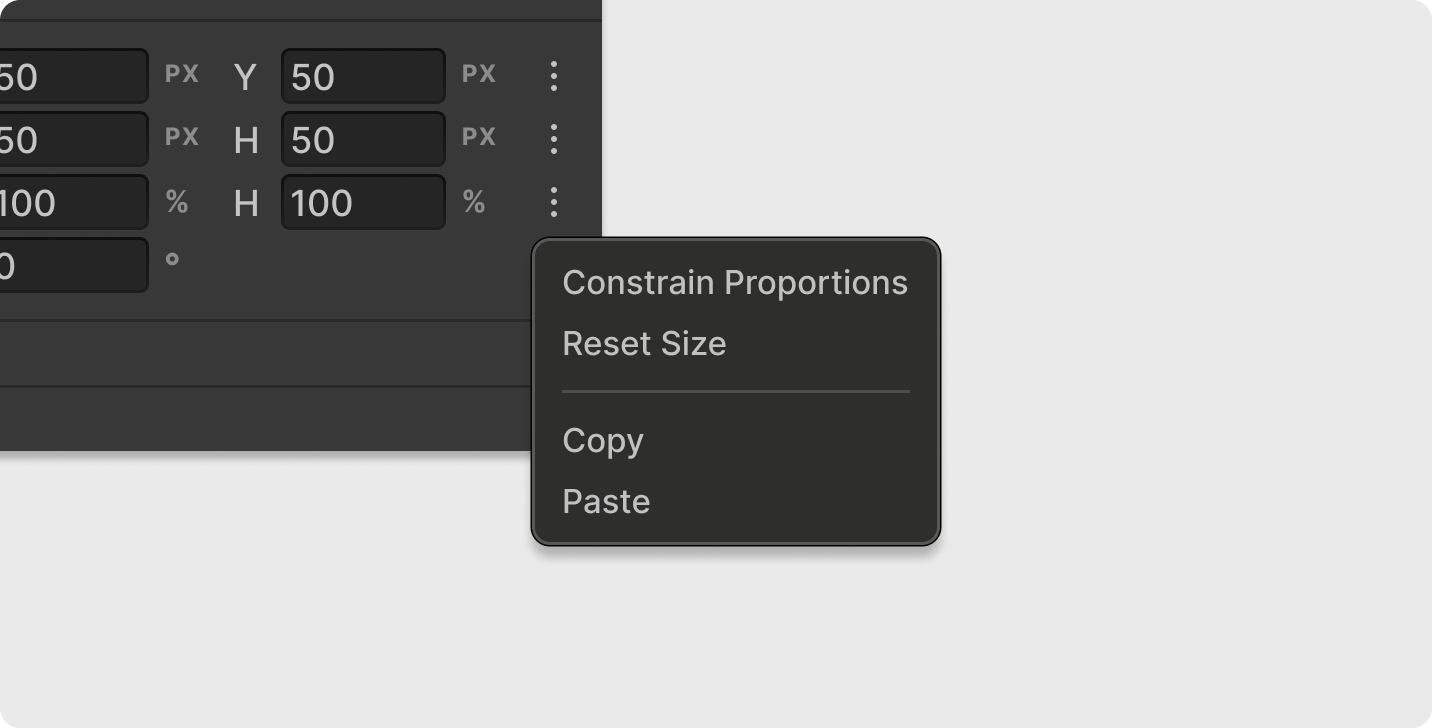
- Constrain Proportions: Preserves current proportions while editing width or height.
- Reset Size/Scale: Resets to original values (1:1 or 100%) relative to the
selected local or global space . - Copy/Paste: Copies and pastes size or scale values.
Tip!
Copy and paste dimensions between objects to easily match sizes (e.g., make a game object match the camera's height)—practically impossible to achieve by manually calculating scale values.
#
Rotating
Transform2D lets you rotate a 2D GameObject around the Transform Anchor point by calculating the required local Z-axis rotation.
- Select the desired GameObject in your scene.
- Ensure your preferred Bounds Source and Transform Anchor are set.
- Enter the desired rotation value between 0-360 degrees (counter-clockwise).
Options menu
- Reset Rotation: Resets the GameObject's rotation to
0degrees relative to theselected local or global space . - Copy/Paste: Copies and pastes rotation values.
#
Using Global and Local space
Transform2D allows you to work in either local or global coordinate space for all transformations—position, size, and rotation—providing flexibility for different needs.
Local Space: Values are relative to the object's parent transform. This is Unity's default behavior and useful for maintaining relative transformations within hierarchies.
Global Space: Values are relative to the world origin, making it easier to work with absolute world coordinates, dimensions, and angles regardless of parent hierarchy.
- Switch between spaces using the main toolbar Local/Global selector.
- When changing spaces, Transform2D automatically converts existing values to maintain the object's current world state while displaying the appropriate coordinate, size, and rotation values for the selected space.
Tip!
In nested hierarchies, use Global space mode with Reset (options menu) to restore original scale/rotation while compensating for parent transformations.
#
Using Math expressions
Transform2D supports mathematical expressions in all input fields, allowing for dynamic calculations and precise adjustments without external calculators.
Supported operations
- Basic arithmetic:
+, -, *, / - Parentheses for order of operations:
(10 + 5) * 2
Examples
[X] + 2moves the current game object exactly 2 world units or pixels to the right.- Set transform anchor to center-left, then
[Width] / 2resizes the object to half its current width from the right edge. - Get Camera dimensions with Transform2D, then use math operations to set game object dimensions to specific screen percentages (half height etc).
Simply type the expression in any input field and press Enter. Transform2D evaluates the expression and applies the result instantly.