#
Editing Multiple Objects
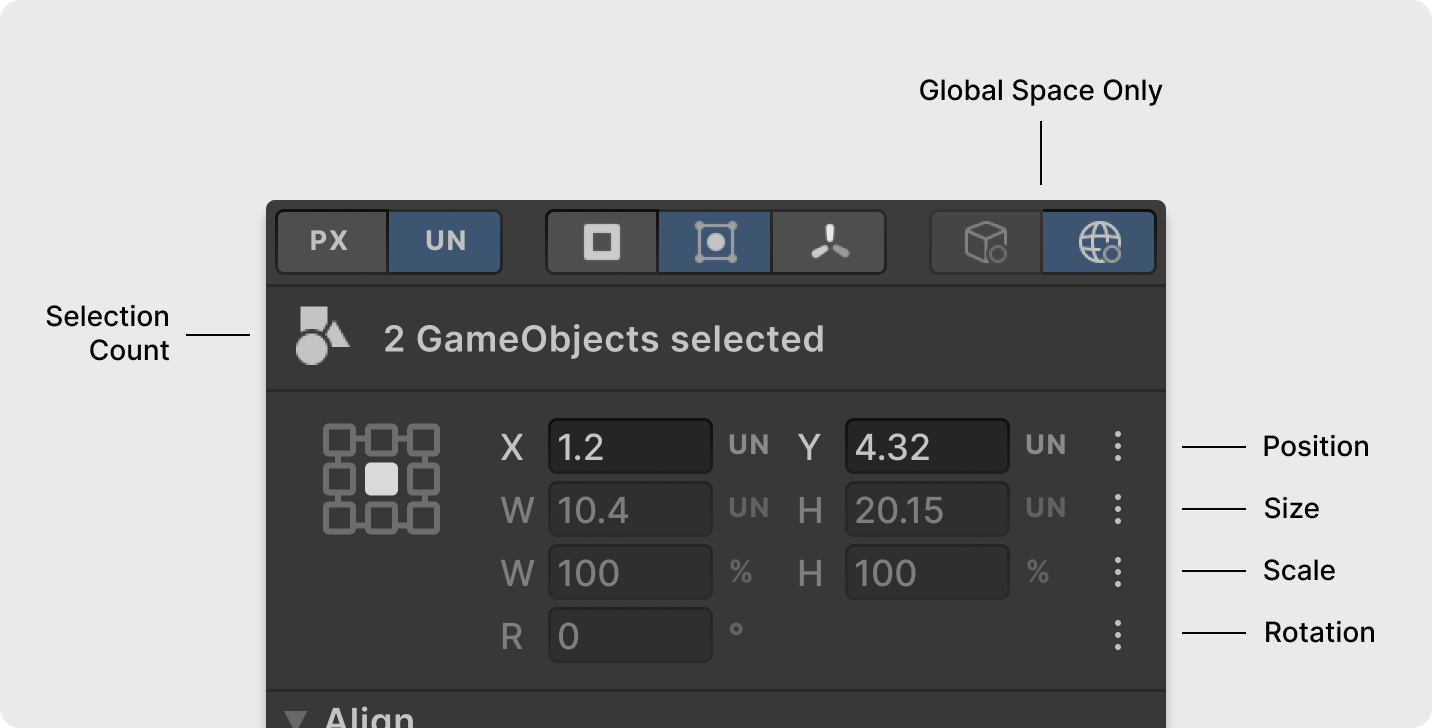
Transform2D extends its powerful transformation capabilities to multiple objects simultaneously. When you select multiple objects in the scene view, Transform2D indicates the number of selected objects, switches to global space only, and displays a dedicated group interface for transformations plus specialized tools for alignment and space distribution.
#
Transform Anchor and Group Bounds
Group Bounds: Unified axis-aligned bounds encompassing all selected objects. The selected bounds source applies to all GameObjects, falling back through priority order (Collider2D → Sprite Renderer → Transform Origin) if unavailable.
Transform Anchor: Positioned relative to the shared group bounds.
#
Group Transformations
Positioning: Move all objects as a unified group using combined bounds and selected transform anchor. Objects maintain relative positions.
Resizing: Currently unavailable for groups. Size fields are disabled, showing combined dimensions in world units or pixels for reference.
Rotating: Currently unavailable for groups, the rotation field is disabled.
#
Alignment Tool
Precisely align objects edges and centers using their selected bounds:
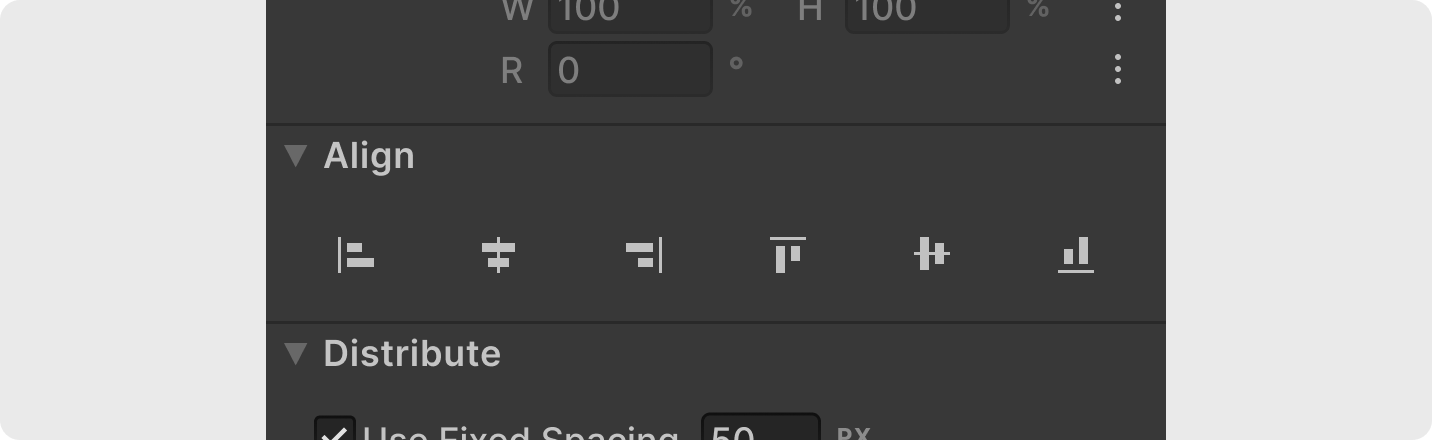
- Horizontal Alignment: Left, center, and right alignment options.
- Vertical Alignment: Top, middle, and bottom alignment options.
#
Distribution Tool
Arrange selected GameObjects with even spacing based on overall width and object bounds by clicking any distribution option. For fixed spacing values in world units or pixels, toggle 'Use Fixed Spacing', set the targeted spacing value, and click any distribution option to apply fixed spacing starting from the bottom or left-most game object.
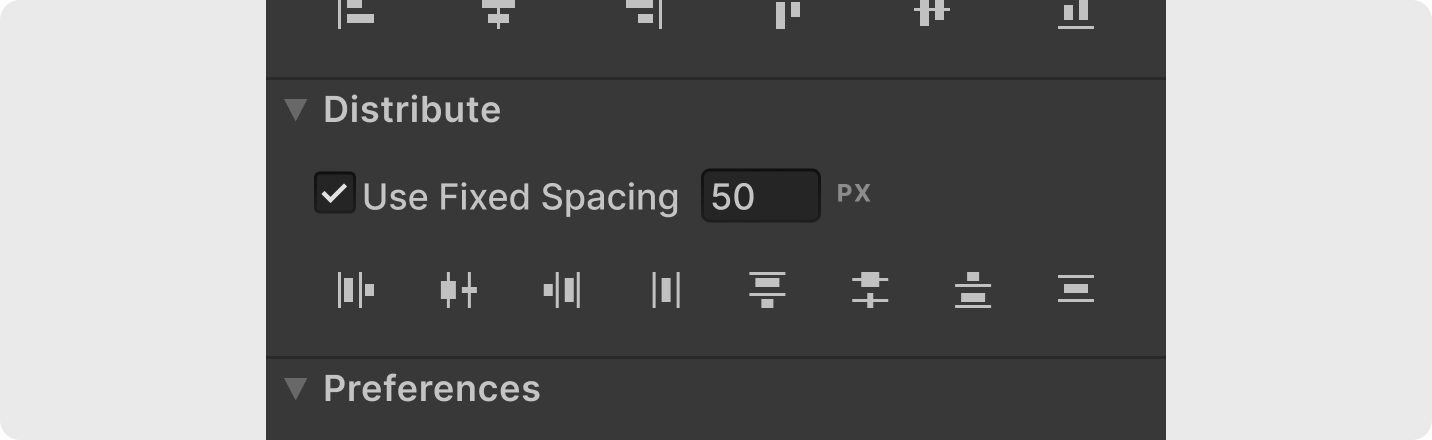
Distribution options:
- By Edges: Space objects by chosen edges (left, right, top, bottom)
- By Centers: Space objects by horizontal or vertical centers
- By Spacing: Control exact distance between object bounds