#
Working with Pixels
Unity's Transform component works in world units, not pixels, creating a common challenge in 2D development, where layouts are typically designed with specific pixel dimensions in mind.
Transform2D lets you use all of its features directly with pixel values, including precise positioning, sizing, alignment and distribution of objects, even guides. It also helps you achieve pixel-perfect results by integrating seamlessly with Unity's Pixel Perfect Camera and allowing for snapping to pixels.
#
Using Pixel Values
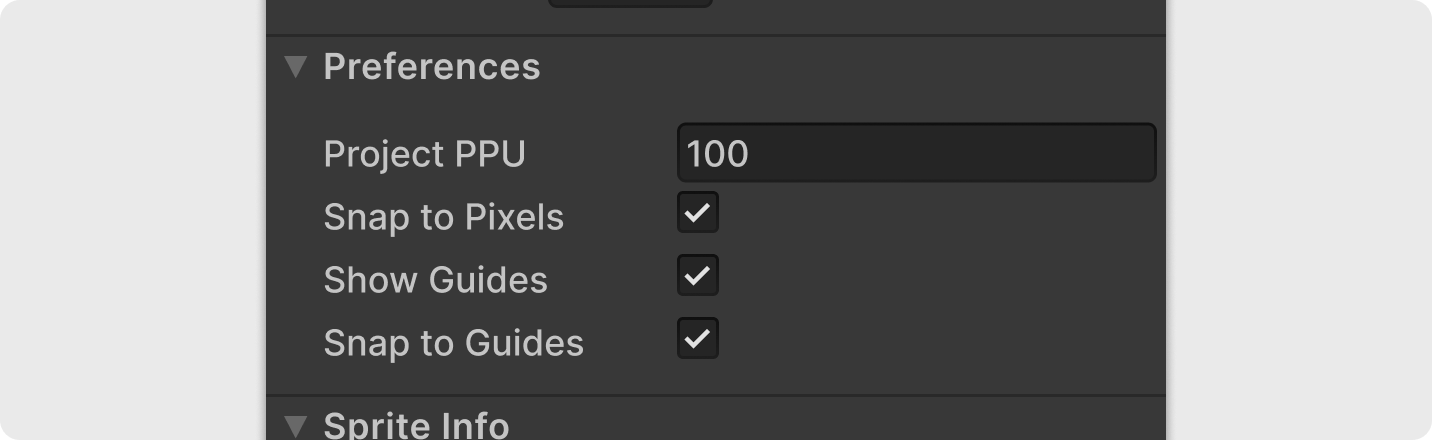
Unity converts pixel dimensions to world units for rendering using the Pixels Per Unit (PPU) value assigned to each sprite asset. Transform2D lets you set a project-level intended PPU and uses this setting to translate all its values from world units to pixel grid coordinates seamlessly.
Setting up your project’s pixel unit support
- Set consistent PPU values: Ensure all your sprite assets use the same PPU value.
It's anyway a best practice for 2D projects. - Configure Project PPU: Set the Transform2D Project PPU to match the PPU value used by your sprite assets.
- Switch to Pixel Units: Select Pixels (px) in the unit selector.
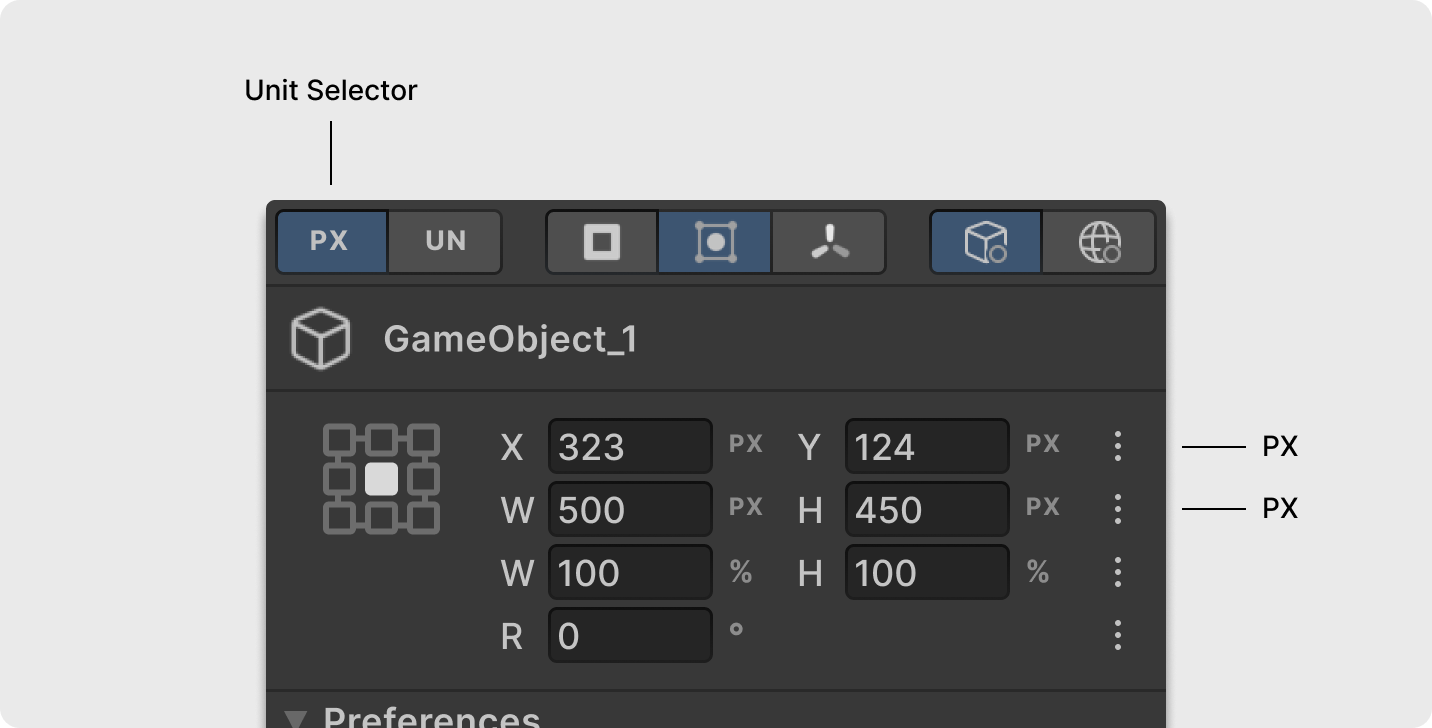
All values—position, size, guides, even sprite quick info—will display and accept pixel units.
#
Pixel Perfection
Pixel perfection means a one-to-one correspondence between the pixels in your source art and the pixels displayed on the user's screen, without blurring, stretching, or misalignment. It's particularly essential for 2D pixel art games.
Achieving pixel perfection in Unity primarily involves using the 2D Pixel Perfect package and its Pixel Perfect Camera component, along with a few additional adjustments. More detailed instructions can be found in Unity's official documentation and community resources.
Transform2D is the perfect companion tool to help you maintain it.
Using Transform2D with the Pixel Perfect Camera
To ensure both tools operate on the same pixel grid, simply match the Project PPU preference in Transform2D with the Assets PPU setting in the Pixel Perfect Camera component.
Snapping to Pixels
Positioning objects at sub-pixel coordinates (e.g., an X position of 10.3) is a common cause of visual blurring. This can be especially easy to overlook when moving GameObjects using the Scene View transformation tools. Transform2D's snapping feature helps prevent this.
- Enable Snap To Pixel: Toggle the Snap To Pixel preference in Transform2D.
- Automatic rounding: When you move objects in the Scene View, their positions will automatically round to the nearest whole pixel value. Manual input in the inspector still allows for sub-pixel values if needed for specific cases.
#
Automatic Warnings
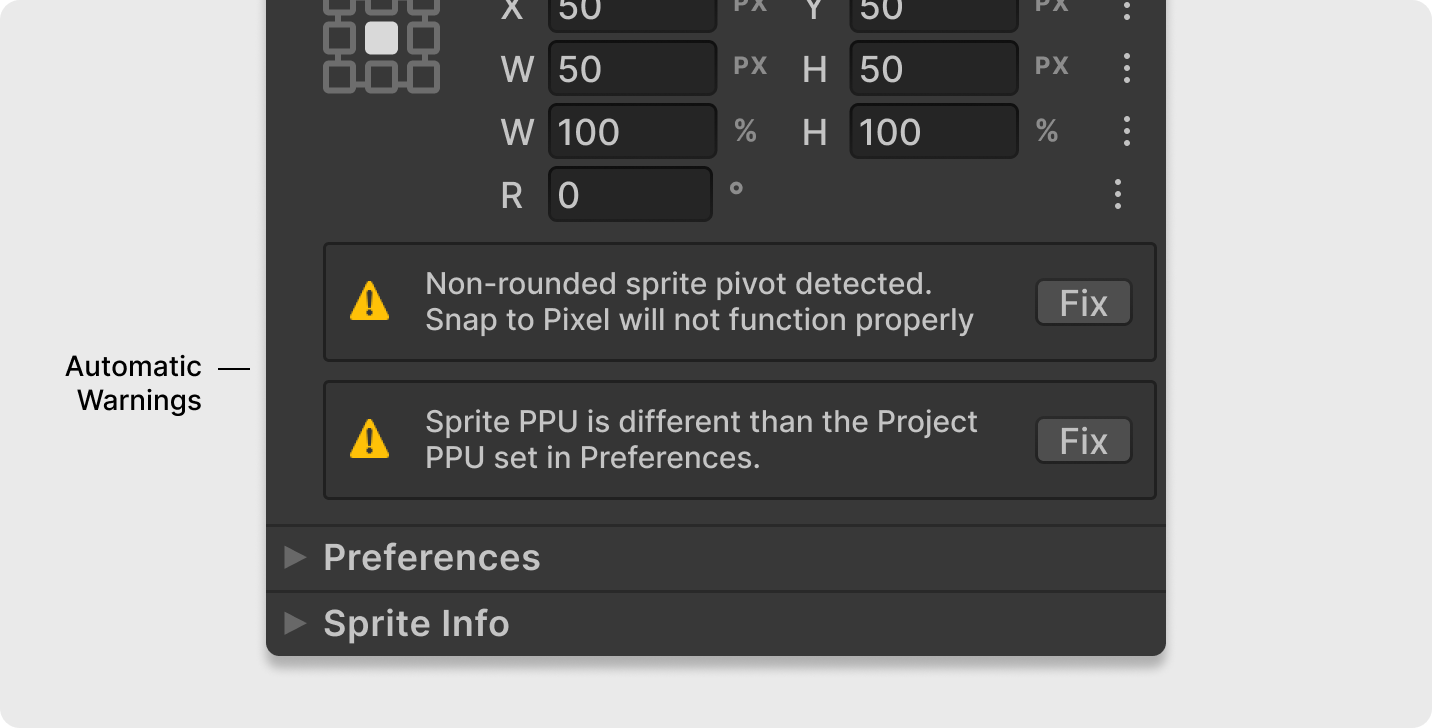
Transform2D helps you maintain pixel grid settings by automatically detecting and warning you about common issues on any selected game object.
Warning Types
- Mismatching PPU warning: This warning appears if a sprite's PPU differs from the Project PPU set in preferences.
- Non-rounded sprite pivots warning: This warning indicates a sprite's pivot point is at a sub-pixel position, which can cause blur. This can happen if the pivot was set improperly or if object scaling has shifted it off the pixel grid.
Use the Fix button next to each warning to resolve these issues instantly.